Apple Business Manager and Apple School Manager know who bought each device, when, and what AppleCare cover it has. Jamf Pro manages the same devices every day, but has no direct feed for that warranty data. The two systems don’t talk to each other by default.
AxM Jamf Sync is a free, open-source macOS app I wrote to close that gap. It reads coverage from Apple’s API and writes it into the matching Jamf Pro record. “AxM” is shorthand for ABM or ASM, since the app works with both.
This post explains what it does, what you need, and how a sync works. For the history, see the release posts for 1.0, 2.0 and 3.0.
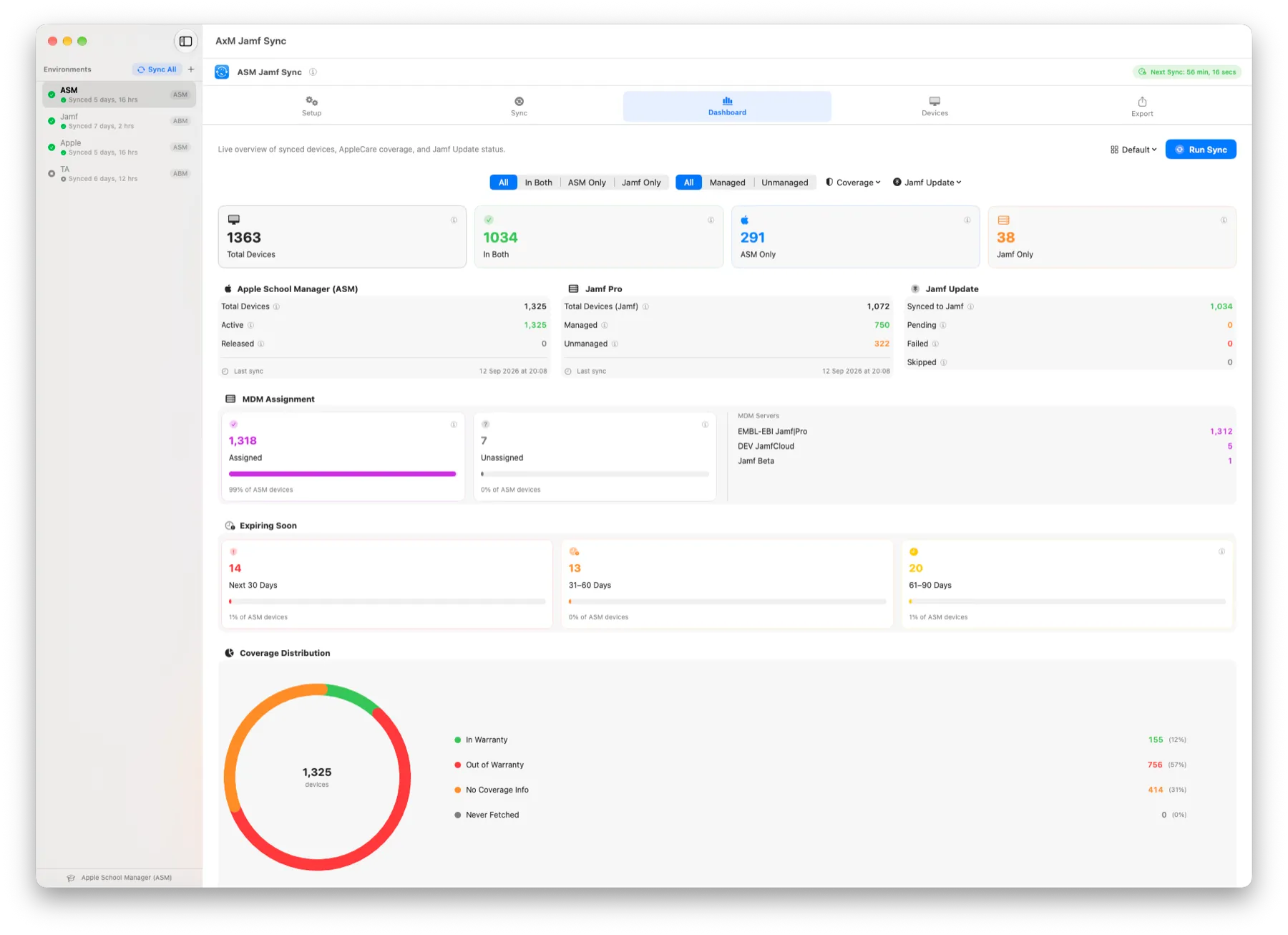
What ends up in Jamf Pro
For every device found in both systems, the app updates these fields on the Jamf record:
| Jamf Pro field | Where the value comes from |
|---|---|
| Warranty expiry date | Coverage end date from Apple’s coverage API |
| AppleCare ID | Agreement number from Apple’s coverage API |
| Vendor | Purchase source type and ID from ABM/ASM |
| PO number | Order number from ABM/ASM |
| PO date | Order date from ABM/ASM |
Once the data is in Jamf Pro you can use it like any other inventory field: smart groups for devices whose cover ends in the next 90 days, reports for finance, or a quick answer when someone asks whether a Mac is still under warranty.
Everything runs on your Mac. There is no cloud relay and no third-party server between Apple, the app and your Jamf Pro instance.
What you need
- macOS 14 (Sonoma) or later
- Apple Business Manager or Apple School Manager with API access: a Client ID, a Key ID and the private key
file (
.p8or.pem) Apple generates when you create the API key - Jamf Pro, cloud or on-premises, with an OAuth API client
The Jamf API role needs four privileges:
| Privilege | Used for |
|---|---|
| Read Computers | Downloading Mac inventory |
| Read Mobile Devices | Downloading iPhone, iPad and Apple TV inventory |
| Update Computers | Writing warranty data to Macs |
| Update Mobile Devices | Writing warranty data to mobile devices |
Install and connect
- Download
AxMJamfSync.dmgfrom the Releases page and drag the app to Applications. It is signed and notarised, so Gatekeeper opens it without warnings. - In the Setup tab, enter the Apple Client ID and Key ID and choose the private key file. The key is read once and stored in the Keychain. The file does not need to stay on disk.
- Enter the Jamf Pro URL, Client ID and Client Secret.
- Click Test Auth in each section. A green tick means that side is ready.
Credentials are saved to the macOS Keychain as you type. Nothing secret is written to disk in plain text.
How a sync works
Run Sync goes through four steps in order.
- Fetch Apple devices. Downloads every device in your ABM or ASM organisation, 1,000 per page, along with which MDM server each one is assigned to.
- Fetch Jamf devices. Downloads computers and mobile devices from Jamf Pro, then matches the two lists by serial number. Each device ends up as In Both, AxM Only or Jamf Only.
- Fetch AppleCare coverage. Asks Apple for the coverage of each device. When a device has more than one coverage record, the one with the latest end date is used.
- Update Jamf. Sends the fields in the table above to every In Both device that has a coverage result.
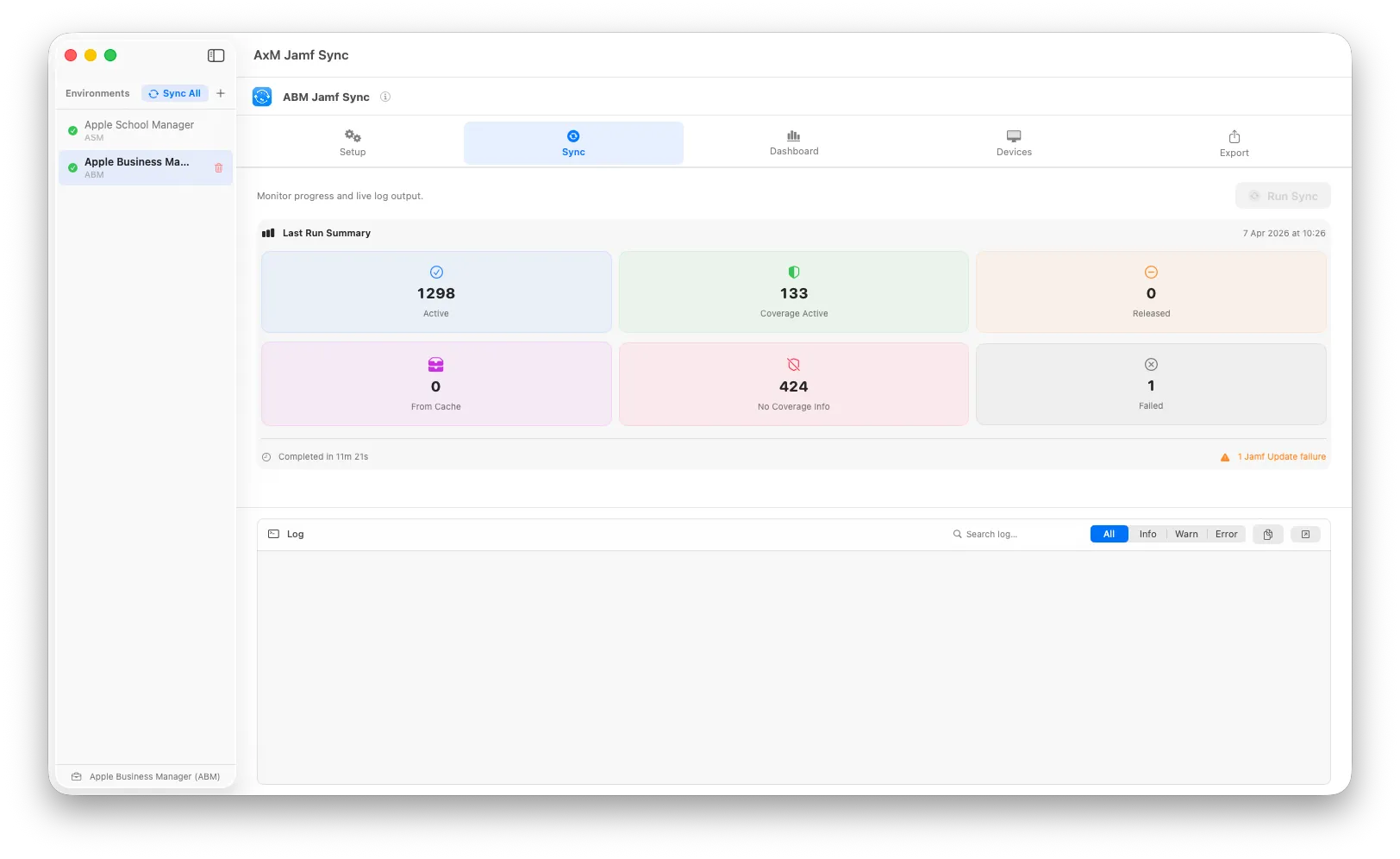
A few things make this practical on a real fleet:
- Caching. The device list is kept for one day and coverage results for seven days by default, so a second run only does the work that is due. Both periods are adjustable, and you can force a refresh.
- Resuming. If a large fetch is interrupted, the next run continues from where it stopped. You can also press Stop Sync at any time and progress is saved.
- Rate limits. Coverage is fetched three requests at a time with a short pause between batches, to stay within Apple’s limits. Expect roughly eight minutes per 1,000 devices for the first full coverage fetch.
- Self-healing. If someone edits or clears the warranty fields in Jamf Pro later, the next sync notices and writes the correct values back.
Beyond the sync
The app has grown since the first release. Today it also includes:
- Multiple environments, each with its own credentials, cache and log, for admins who look after more than one organisation or Jamf server
- A dashboard with views for combined, Apple-only and Jamf-only data, where every number opens the list of devices behind it
- CSV export with presets such as “expiring in 30 days” and “write-back failed”
- Scheduling, from a friendly schedule builder or a raw cron expression
- A command-line mode (
--silent) forlaunchdand scripts
Before you use it in production
The full documentation is in the project wiki, including a troubleshooting page. Bugs and feature requests are welcome in GitHub Issues.