Many Mac admins probably already know this, but sometimes the simplest configuration changes can lead to unexpected behaviour.
Recently, I ran into an interesting issue while testing a configuration profile in Jamf Pro. What started as a straightforward Login Window customisation ended with several applications unexpectedly closing and a bit of digging through macOS unified logs.
The experience reminded me of something worth sharing: when configuring a single setting using a built-in Jamf Pro payload, you may end up enforcing more settings than you intended.
And this isn’t limited to the Login Window payload.
It Started With a Simple Change
I was testing the Login Window payload in Jamf Pro to customise the banner displayed on managed Macs.
Nothing complicated. I only wanted to display a message informing users that their device was managed and to contact the IT Service Desk if they needed assistance.
I added the built-in Login Window payload to a configuration profile, made the necessary changes, and deployed it to my test Mac.
Everything looked fine.
Or so I thought.
The Mystery: Why Were My Applications Closing?
Over the next few days, I started noticing something strange.
Whenever I returned to my Mac after lunch, several applications had closed. My Terminal sessions were interrupted, browsers had quit, and other applications were no longer running.
But the Mac itself was still on the desktop.
It hadn’t rebooted, and I hadn’t been logged out.
Initially, I suspected several possibilities:
- A failed macOS shutdown or restart.
- Software update enforcement triggering an unexpected restart.
- A management process requesting a logout.
- An application or macOS session-related issue.
Since this happened more than once, I decided to investigate using macOS unified logs.
Following the Clues in macOS Unified Logs
I started by checking whether the Mac had actually restarted.
last reboot | head -15
last shutdown | head -15
uptime
The results confirmed that the Mac hadn’t restarted during lunch.
Next, I investigated loginwindow, the macOS process responsible for managing login and logout sessions.
log show --last 6h --style compact \
  --predicate 'process == "loginwindow"' \
  --info
This revealed something interesting.
At approximately 13:05, loginwindow was actively requesting applications to terminate.
termination requested for: Claude
termination requested for: Safari
termination requested for: Tart
termination requested for: Mail
termination requested for: ChatGPT
termination requested for: Slack
termination requested for: Terminal
These applications weren’t independently crashing.
macOS was deliberately asking them to quit.
A little further into the logs, I found another important clue:
com.apple.logoutInterrupted
object:com.apple.terminal

Application failed to quit
Terminal had prevented the logout process from completing.
That explained why I returned to an active desktop with several applications already closed.
But what had initiated the logout in the first place?
The Actual Root Cause: 30 Minutes of Inactivity
After narrowing down the log timestamps, I found the event that explained everything.
ScreenSaverDaemon _handleAutoLogOutTimer:

_prefSecondsTilAutoLogOut = 1800

idleTime = 1800.002163

level indicates we should,
so attempting to logout NOW.

Starting logout with confirmation
There it was!
macOS had been configured to automatically log out the user after 1,800 seconds — exactly 30 minutes of inactivity.
The system displayed a logout confirmation dialog with a 60-second countdown. Because I was away from my desk, the countdown expired, and macOS began closing applications.
Terminal eventually blocked the logout, leaving me with a partially closed working session.
I checked:
System Settings → Privacy & Security → Advanced → Log out automatically after inactivity
The option was enabled, set to 30 minutes, and greyed out.
Clearly, something was managing this preference.
The Surprise Was in the Jamf Pro Payload
When I went back to the Login Window configuration profile I had deployed for testing, the answer was right there.
Under:
Jamf Pro → Configuration Profiles → Login Window → Options
The following setting was enabled:
Log out users after: 30 minutes of inactivity
I hadn’t intentionally configured automatic logout.
I had added the Login Window payload to customise a banner and overlooked another enabled option in the same payload.
macOS was simply doing what the configuration profile instructed it to do.
The Bigger Lesson: This Isn’t Just About Login Window
This is the part I think is worth highlighting.
Several built-in configuration profile payloads in Jamf Pro can behave similarly.
When you enable a built-in payload to configure one particular setting, Jamf Pro may include additional settings or default values associated with that payload.
Depending on the payload, those settings can span multiple preference domains.
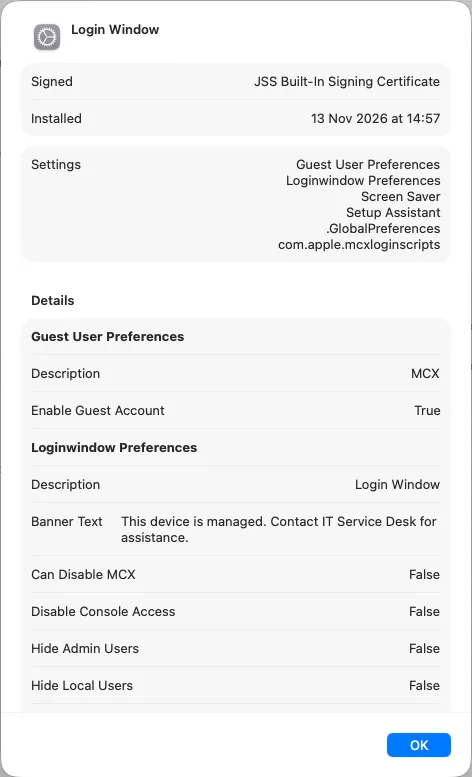
In my Login Window example, the resulting configuration profile included settings associated with:
- Login Window preferences
- Guest User preferences
- Screen Saver
- Setup Assistant
.GlobalPreferencescom.apple.mcxloginscripts
I only wanted to configure the Login Window banner.
But the resulting profile contained considerably more than that.
This can make troubleshooting difficult, particularly when an unexpected behaviour appears days after deploying a profile.
You might search for a specific preference key or configuration profile payload without immediately realising that the setting was introduced through another option in a built-in payload.
The important distinction is between what you intended to configure and what the resulting profile actually enforces.
Comparing Two Approaches
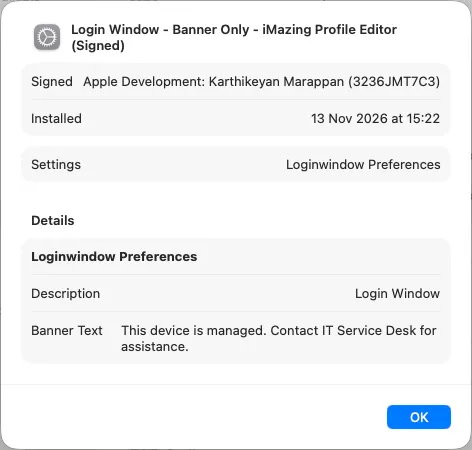
To demonstrate the difference, I created another configuration profile using iMazing Profile Editor.
This time, I included only the Login Window banner setting.
I signed the .mobileconfig and uploaded it to Jamf Pro.
The resulting profiles looked quite different when inspected in macOS System Settings.
Approach 1: Jamf Pro Built-in Login Window Payload
The profile contained several preference categories, including Login Window, Guest User, Screen Saver, Setup Assistant and other settings.
Some of these were unrelated to my original requirement.
Approach 2: Minimal Signed .mobileconfig
The profile created using iMazing Profile Editor contained only the intended Login Window preference.
The macOS profile details displayed the banner text without the additional preference categories introduced by the built-in payload.
The screenshots accompanying this article show the difference.
Why I Prefer Minimal, Signed Configuration Profiles
For targeted settings, I generally prefer creating a minimal .mobileconfig containing only the required payload and keys.
Tools such as iMazing Profile Editor make this relatively straightforward.
There is also an important detail when uploading custom configuration profiles to Jamf Pro.
In my testing, uploading an unsigned .mobileconfig allowed Jamf Pro to interpret and rebuild the configuration, which could introduce additional settings.
Signing the profile before uploading helped preserve the intended payload structure.
This doesn’t mean every configuration profile must be signed or that Jamf Pro’s built-in payloads should be avoided entirely.
Built-in payloads are convenient and useful, particularly when you genuinely need to configure several related settings.
But when the requirement is to enforce just one or two specific preferences, a minimal custom profile can offer greater control over what gets deployed.
It is still important to inspect the final profile and test the effective settings on a Mac before wider deployment.
What I’d Recommend to Other Mac Admins
A few practical lessons from this experience:
1. Review the entire payload, not just the setting you’re changing.
When enabling a built-in Jamf Pro payload, check every option, including any values already selected.
2. Inspect what actually gets installed.
The configuration profile displayed on the Mac can reveal additional managed settings that weren’t obvious during configuration.
3. Consider minimal custom profiles for targeted settings.
If you only need to enforce a specific preference, a minimal .mobileconfig may be a cleaner approach.
4. Understand how Jamf Pro handles uploaded profiles.
In particular, test the difference between signed and unsigned custom profiles in your Jamf Pro environment.
5. Use macOS unified logs when behaviour doesn’t make sense.
In this case, the logs told the complete story — from the inactivity timer triggering the logout to Terminal preventing it from finishing.
Final Thoughts
What started as a simple Login Window banner customisation turned into an interesting troubleshooting exercise.
The issue wasn’t a macOS crash, a software update, or a failed restart.
It was an unintended setting in a configuration profile I had deployed myself.
And the lesson extends well beyond Login Window settings.
Sometimes the issue isn’t what you configured. It’s what you didn’t realise was configured.
Many experienced Mac admins will already be familiar with this behaviour, but for anyone troubleshooting unexpected managed settings, hopefully this experience saves some time.
Have you encountered similar surprises with built-in Jamf Pro configuration profile payloads?
I’d be interested to hear which payloads have caught others out.